
A PowerShell MOTD Worth Smiling At
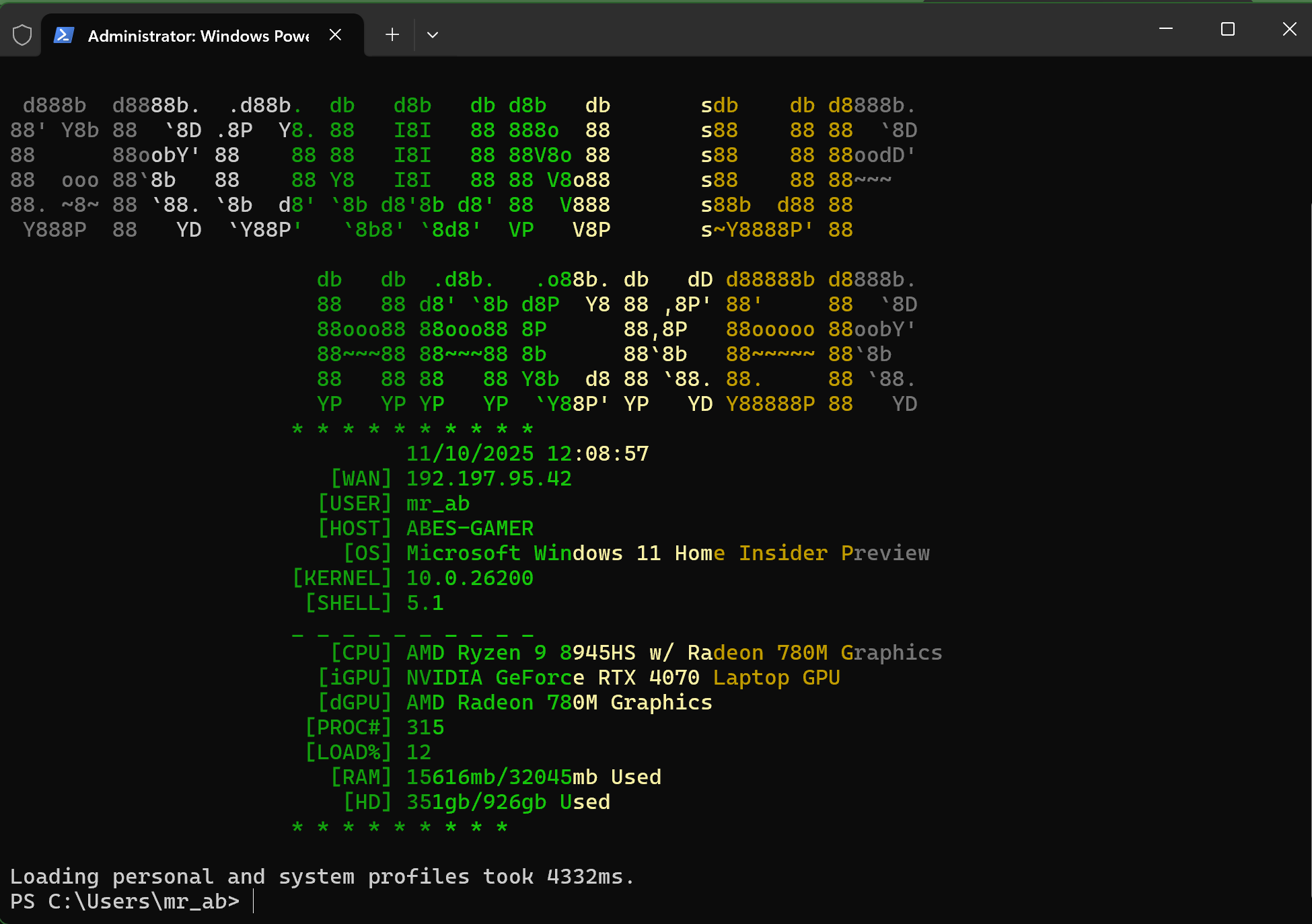
One of my favorite little rituals when I crack open a new shell session is the Message of the Day (MOTD). In the Linux world, MOTDs have long been a way to greet yourself with system stats, witty quotes, or ASCII art. Windows PowerShell doesn’t ship with that tradition baked in-but that’s no reason I can’t bring it to life myself.
Recently, I put together a PowerShell function called Get-MOTD. It’s equal parts practical system dashboard and playful splash screen. Let’s unpack what it does, why it’s fun, and how you can make it your default greeting across all your environments.
What the Script Does
At its core, Get-MOTD is a system information collector and presenter. It:
- Queries system details via CIM: OS name, kernel version, uptime, CPU, GPU, memory, disk usage, and process count.
- Captures shell context: your PowerShell version, current user, hostname, and even your WAN IP (if available).
- Formats the data into a clean, ASCII-art–framed block that feels like a retro terminal dashboard.
- Supports remote sessions: you can pass a
-ComputerNameand optional credentials, and it’ll pull the same MOTD from a remote host.
So instead of typing Get-ComputerInfo and parsing through a wall of properties, you get a curated, human-readable snapshot every time you open your shell.
Why It’s Fun
Let’s be honest: system stats are useful, but they’re also a little dry. The fun comes from the presentation. This MOTD script leans into:
- ASCII art nostalgia: The block letters at the top give it that hacker-lab vibe.
- Dynamic data: Every session shows fresh uptime, load, and memory usage, so it’s alive, not static.
- A personal dashboard: WAN IP, username, and host info make it feel like a cockpit readout.
It’s not just information-it’s a ritual. You open your shell, and your system greets you with a little personality.
The Color Engine: Gradients in the Console
The most interesting technical flourish here is the Write-ColorGradient function. PowerShell’s Write-Host lets you set a foreground color, but it’s usually one color per line. This script breaks that mold:
- Character-by-character coloring: Each character in the ASCII art is written with a color from a defined palette.
- Gradient stepping: The function calculates how many characters to print before shifting to the next color, creating a smooth fade across the line.
- Palette flexibility: In this case, the palette runs from dark gray → green → yellow → back to dark gray, evoking a phosphorescent terminal glow.
It’s a small trick, but it transforms plain ASCII into something that feels alive. The gradient engine is modular too-you could swap in blues, reds, or even rainbow sequences if you want to theme your MOTD.
Making It Your Default MOTD Everywhere
A MOTD only works if it’s automatic. Here’s how to wire it up so it greets you every time:
-
Download the profile script
You can grab the ready-to-use profile script directly from GitHub:
👉 Windows-Profile.ps1Save this file into your OneDrive-synced PowerShell folder (e.g.
~/OneDrive/PowerShell/). -
Point your PowerShell profile to it
Find your profile path with:$PROFILEThen edit that file and add:
. "$env:OneDrive\PowerShell\Windows-Profile.ps1" -
Enjoy it everywhere Because it’s in OneDrive, every machine you log into with your account will load the same MOTD. Your shell becomes portable, consistent, and just a little more fun.
Because it’s in OneDrive, every machine you log into with your account will load the same MOTD.
Your shell becomes portable, consistent, and just a little more fun.
Bonus: More Tools to Explore
The Get-MOTD script is just one gem in the grownuphacker/Tools repository.
It’s a treasure chest of glue‑code utilities - from AD testing helpers like Intentional-Lockout, to network tools like Open Ports, to quirky automation like Troll-o-matic.